
How to Check Typing Speed in Microsoft Word (Step-by-Step Guide)
Microsoft Word is commonly used for writing documents, completing assignments, preparing reports, and handling everyday typing tasks. But have you ever wondered how fast you can type while working in Word? Checking your typing speed can help you understand your current performance, measure your progress, and identify areas where you need improvement.
Although Microsoft Word does not have a built-in typing speed test with a countdown timer, you can use its word count feature and a separate timer to calculate your Words Per Minute (WPM). This method is simple and suitable for students, professionals, beginners, and anyone who wants to measure their typing speed.
In this guide, you will learn how to check your typing speed in Microsoft Word, calculate your WPM, measure typing accuracy, and discover a faster way to test your keyboard skills online.
Can You Check Typing Speed in Microsoft Word?
Yes, you can check your typing speed in Microsoft Word, but the application does not provide a dedicated typing speed test. Instead, you can measure your performance manually by typing for a fixed period and checking the total number of words you have entered.
Microsoft Word includes a useful Word Count feature that displays the number of words, characters, paragraphs, and pages in a document. You can use this information to calculate your typing speed.
However, you will need an external timer, such as a stopwatch on your phone or computer, to track how long you spend typing. By combining the timer with Word Count, you can estimate your average typing speed in words per minute.
How to Check Typing Speed in Microsoft Word
Follow these simple steps to measure your typing speed using Microsoft Word. You do not need any special software or advanced technical knowledge.
Step 1: Open a Blank Word Document
First, open Microsoft Word on your computer and create a new blank document. Make sure the document is empty so that your results include only the words you type during the test.
Place your cursor at the beginning of the page and get ready to start typing. You can use any sample paragraph, article, or passage as your typing material.
For a more reliable result, choose a passage that contains a variety of words, punctuation marks, and sentence structures.
Step 2: Choose a One-Minute Timer
Before starting, open a stopwatch or timer on your phone or computer. Set the duration to exactly one minute.
A one-minute typing test is a convenient way to measure your basic typing speed without spending too much time. Make sure your timer is ready before you begin.
Try to start typing as soon as the timer begins. Avoid unnecessary pauses because they can affect your overall WPM result.
Step 3: Type a Sample Paragraph
Once the timer starts, begin typing your selected paragraph into the blank Word document.
Focus on maintaining a comfortable typing rhythm instead of rushing to press as many keys as possible. Try to maintain a balance between speed and accuracy.
During the test:
- Keep your eyes on the text you are copying.
- Avoid unnecessary pauses while typing.
- Use proper finger placement whenever possible.
- Do not intentionally skip difficult words.
- Focus on reducing spelling and typing mistakes.
Continue typing until the one-minute timer ends. Stop immediately when the time is over.
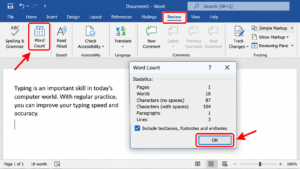
Step 4: Check Your Word Count
After completing the test, check how many words you typed in Microsoft Word.
You can find the Word Count feature in two ways:
- Open the Review tab in Microsoft Word.
- Click Word Count to view your document statistics.
Alternatively, look at the word count displayed in the status bar at the bottom of the Word window. If it is not visible, right-click the status bar and enable Word Count.
Note the total number of words you typed during the one-minute session. This number will help you calculate your typing speed.
Step 5: Calculate Your Typing Speed
Now that you know your total word count and test duration, you can calculate your typing speed.
For example, if you typed 45 words in one minute, your typing speed is 45 WPM.
If you completed a test lasting more than one minute, divide the total number of words by the time spent typing in minutes.
This gives you an estimate of your average typing speed and helps you understand your current keyboard performance.
How to Calculate WPM in Microsoft Word
Understanding Standard WPM Calculation
Many typing tests use a standard word length of five characters, including spaces. Under this method, typing speed is calculated by dividing the total number of characters typed by five, then dividing by the time in minutes.
Standard WPM = Total Characters Typed ÷ 5 ÷ Time in Minutes
For example:
Characters typed: 300
Time: 1 minute
Standard typing speed: 300 ÷ 5 = 60 WPM.
Microsoft Word’s Word Count feature counts actual words, so its word count method provides an estimate rather than an exact equivalent of standard typing-test WPM.
How to Check Typing Accuracy in Word
Typing speed is only one part of your overall keyboard performance. Accuracy is equally important because frequent spelling mistakes and incorrect keystrokes can reduce the quality of your work.
To check your typing accuracy in Microsoft Word, compare the text you typed with the original passage.
Follow these steps:
- Keep the original paragraph open for comparison.
- Read your typed document carefully.
- Identify missing, incorrect, or additional words.
- Check spelling, punctuation, and capitalization.
- Count the mistakes you made during the test.
You can calculate accuracy using this basic formula:
Typing Accuracy = (Correct Characters ÷ Total Characters Typed) × 100
For example, if you typed 50 words and 45 were correct, your accuracy would be 90%.
Improving typing accuracy can help you complete documents faster, reduce editing time, and develop better keyboard skills.
Is Microsoft Word Accurate for Typing Speed Tests?
Microsoft Word is useful for estimating your typing speed, but it is not designed specifically for measuring typing performance.
Its Word Count feature provides a total word count, while the timer must be managed separately. You also need to compare your text manually to identify typing errors.
Some limitations include:
- No built-in typing test countdown.
- No automatic WPM calculation for a timed session.
- No dedicated typing accuracy score.
- No real-time typing performance analysis.
- No automatic progress tracking between tests.
These limitations make Microsoft Word less convenient for people who want detailed typing test results.
However, it can still be a practical option for a quick manual assessment. If you regularly want to monitor your typing speed, an online typing test offers a more convenient solution.
A Faster Way to Check Your Typing Speed Online
If you want to measure your typing speed without manually setting a timer or calculating WPM, an online typing test can make the process much easier.
TypingImprove provides a simple way to check your typing speed and accuracy directly in your browser. Instead of using a separate stopwatch and Microsoft Word’s word count feature, you can take a timed typing test and view your performance results.
With an online typing speed test, you can:
- Measure your typing speed in Words Per Minute (WPM).
- Check your typing accuracy.
- Practise typing with different test durations.
- Identify mistakes and work on improving your performance.
- Track your progress through regular practice.
Whether you are a beginner, student, office worker, or experienced typist, regular practice can help you develop better typing habits.
You can also try different test durations, such as one-minute, two-minute, and five-minute typing tests, to understand how consistently you type over different periods.
Ready to measure your typing speed? Visit TypingImprove.com and take a free online typing test to discover your current WPM and accuracy.
Frequently Asked Questions
Can Microsoft Word measure typing speed automatically?
No. Microsoft Word does not include a dedicated typing speed test. However, you can use its Word Count feature with an external timer to calculate your approximate words per minute.
How do I check my WPM in Microsoft Word?
Type a passage for a fixed amount of time, such as one minute. Open the Word Count feature to see how many words you typed. Divide the total words by the time in minutes to calculate your WPM.
What is a good typing speed for beginners?
A typing speed of around 20–30 WPM is a reasonable starting point for beginners. With consistent practice, you can gradually improve your speed and accuracy.
Can I take a one-minute typing test in Word?
Yes. Open a blank Word document, start a one-minute stopwatch, and type a sample paragraph until the timer ends. Then check your total word count to estimate your typing speed.
Is an online typing test better than Microsoft Word?
An online typing test is generally more convenient because it can automatically measure typing speed, calculate accuracy, and provide results without requiring manual calculations. Microsoft Word is useful for basic manual assessments but lacks dedicated typing test features.
How can I improve my typing speed and accuracy?
Practise regularly, maintain proper finger placement, focus on accuracy before increasing speed, and take timed typing tests to monitor your progress. Consistent daily practice can help you build confidence and improve your overall keyboard skills.